
Overview
This guide explains how refunds for paywall transactions can be processed when a subscriber requests repayment for a payment made through the captive access network paywall feature. It describes how the end user provides payment details to the admin, how the administrator locates the correct purchase in the Admin Portal, and how a refund is initiated via the Stripe payment gateway by accessing the corresponding connected account and transaction. By following this guide, you will be able to manage and process subscriber refund requests for paywall purchases.
Paywall subscribers can request refunds for their payment transactions if needed. Stripe enables the admin to process these refunds upon receiving a user request. The steps for initiating a refund are outlined below.
-
The captive account user must provide the details of the their payment transaction to the admin to raise the refund request.
-
The admin must collect the payment details from the end user.
-
Open the Admin Portal and select the Users tab.
-
Find the required user using the username.
-20241219-100256.png?cb=cefc4af566eaf7302d35003462bb1e2b)
-
Select the Actions
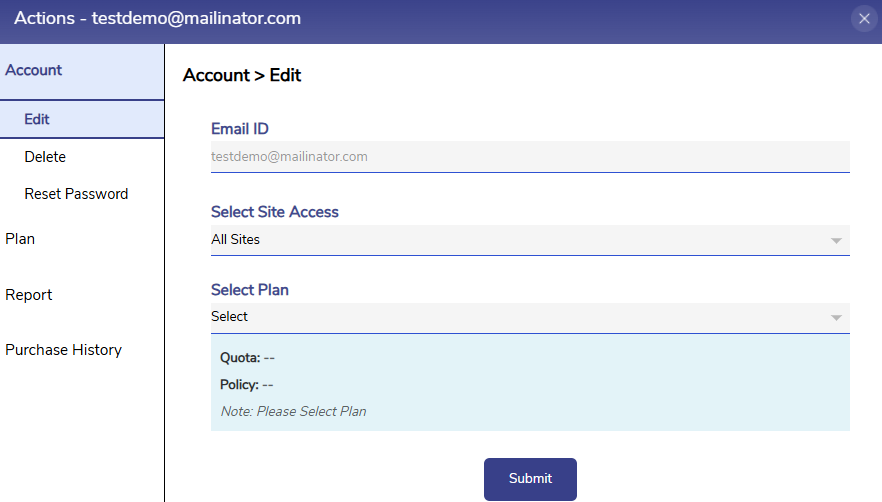
-
Select the Purchase History option from the side bar.
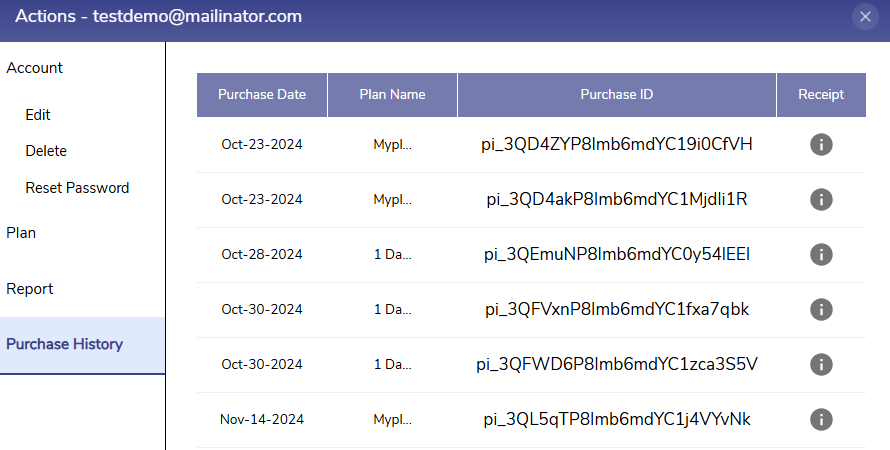
-
Find the Purchase ID of the payment transaction that needs to be refunded from the Purchase ID column.
-
The admin can initiate the refund from the corresponding Stripe admin account.
-
Admin logs in to the stripe admin account and switches to newly created connected account using the dropdown menu at the top left corner.
%20(1)-20241212-140443.png?cb=f1c26b55ea2a58d71ffadcb3cb6a8f32)
-
Click on Transactions option from the side bar and all the payments on that MSP’s account are shown.
-20241212-140603.png?cb=99f3071398bf892643dc3cf60a9b3544)
-
Click on the transaction for which refund has to be initiated. Find the required transaction using the Purchase ID of the payment in the Description column.
-20241212-140716.png?cb=eff904e3ac1b7f2c97b38ae12aa142d5)
-
Click on the Refund button. The Refund payment pop up opens.
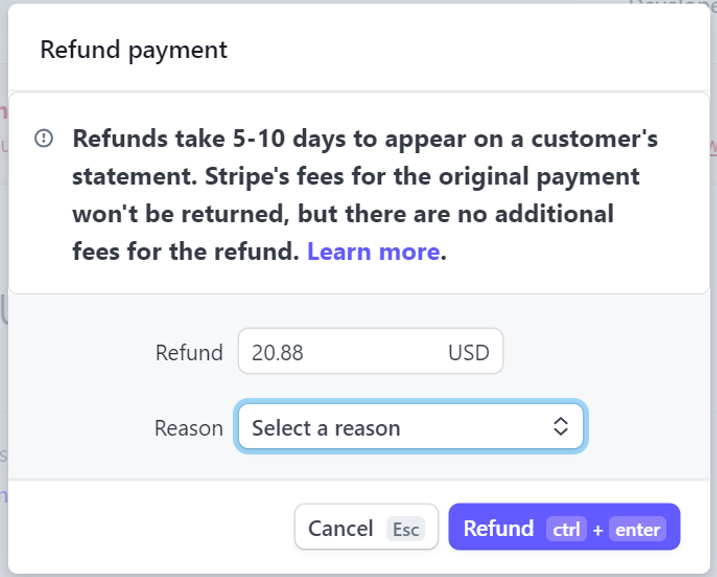
-
Enter the Refund amount, Reason for refund and click on Refund button. This will initiate the refund and the refund amount will be credited in the source account of the end user.